Use this setup guide if you’d like to be able to contribute to the Chronicles of the Guardians resource.
This setup guide currently only works on the desktop version of Obsidian due to the Google Drive link.
Prerequisites
Please install the following to your computer
- Obsidian - A personal knowledge base and note-taking software application that operates on Markdown files [1]
- Google Drive for Desktop - A tool used to sync your Google Drive to your local computer that appears as a drive/folder in your file system
Setup
Google Drive
- Make sure you have “Editor” access to the The Fey Isles folder. Ask Raph or Mahesh to be given edit access!
- Open up Google Drive in a web browser, and navigate to The Fey Isles folder
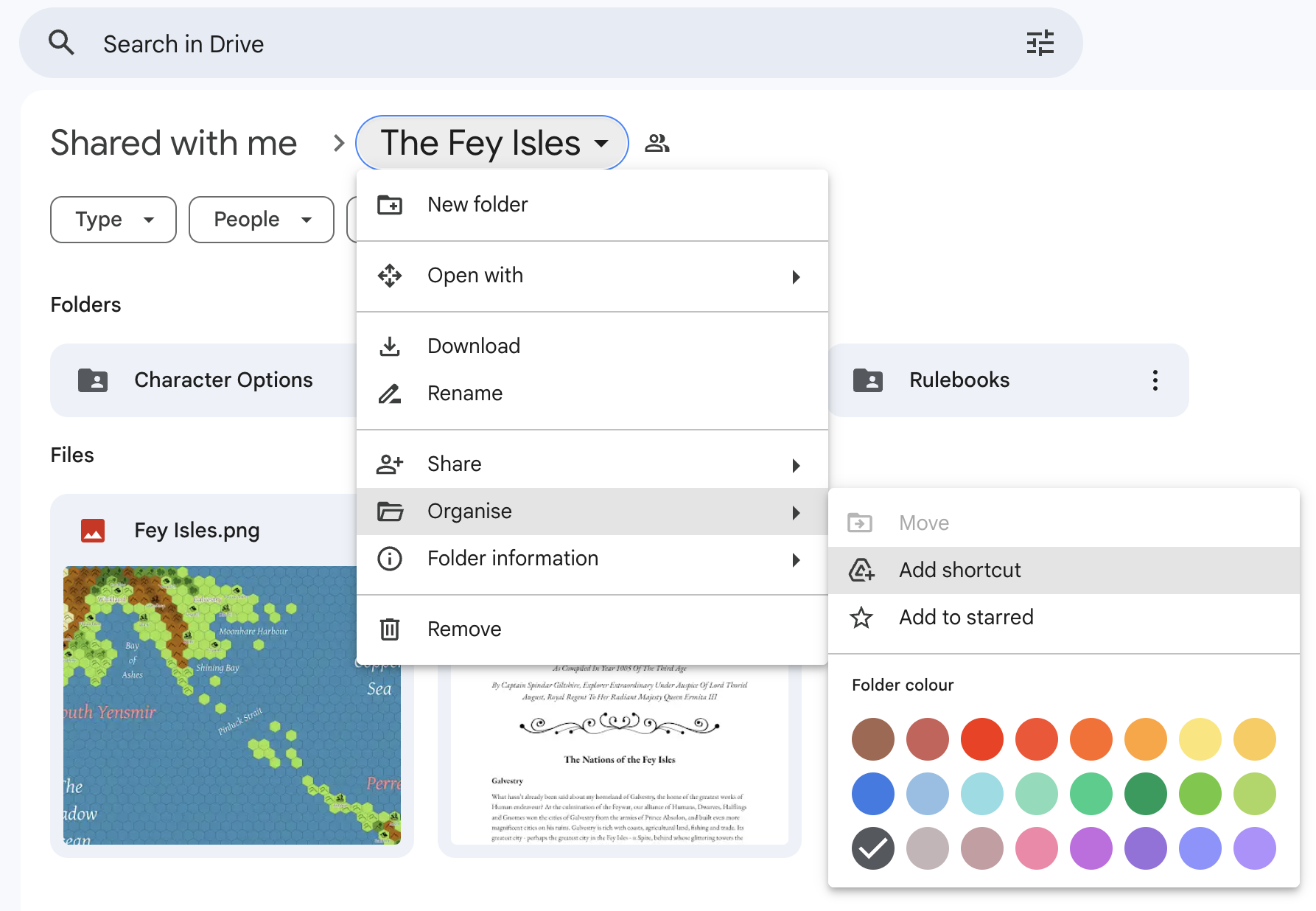
- Click ”The Fey Isles” in the header, followed by “Organise”, and “Add Shortcut”
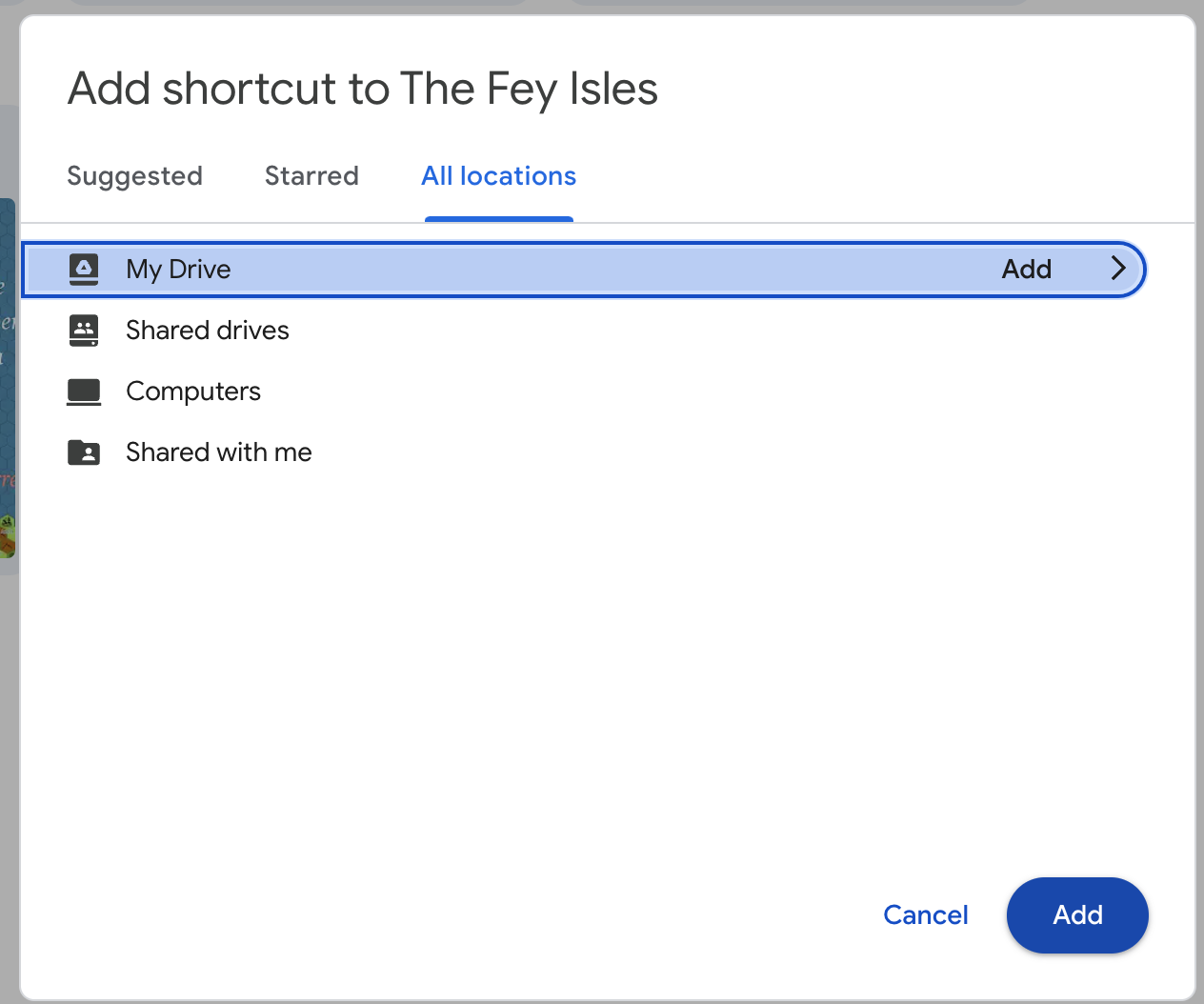
- In the popup add the shortcut somewhere in your “My Drive” folder
- Open up “Google Drive for Desktop” and sign in to the same account as you created the shortcut link for, once it is set up you should see your Google Drive available in your file explorer
- e.g. for MacOS
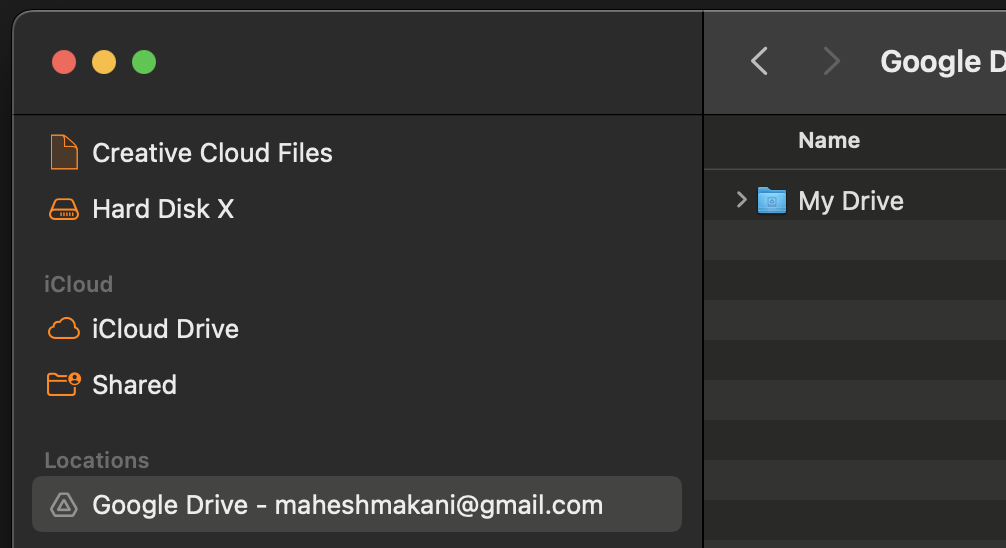
- e.g. for MacOS
- Make sure you can see the “The Fey Isles” folder inside “My Drive”, right click on it and select “Available Offline”
- At this point Google Drive is ready to sync any changes that we make in Obsidian, so let’s go there
Obsidian
- Open up Obsidian, and navigate to “File” -> “Open Vault”
- Then select “Open folder as Vault” -> “Open”
- Navigate to “The Fey Isles” folder within your Google Drive within the file explorer
- Open the folder, and select the “Chronicles of the Guardians” folder, then click “Open”
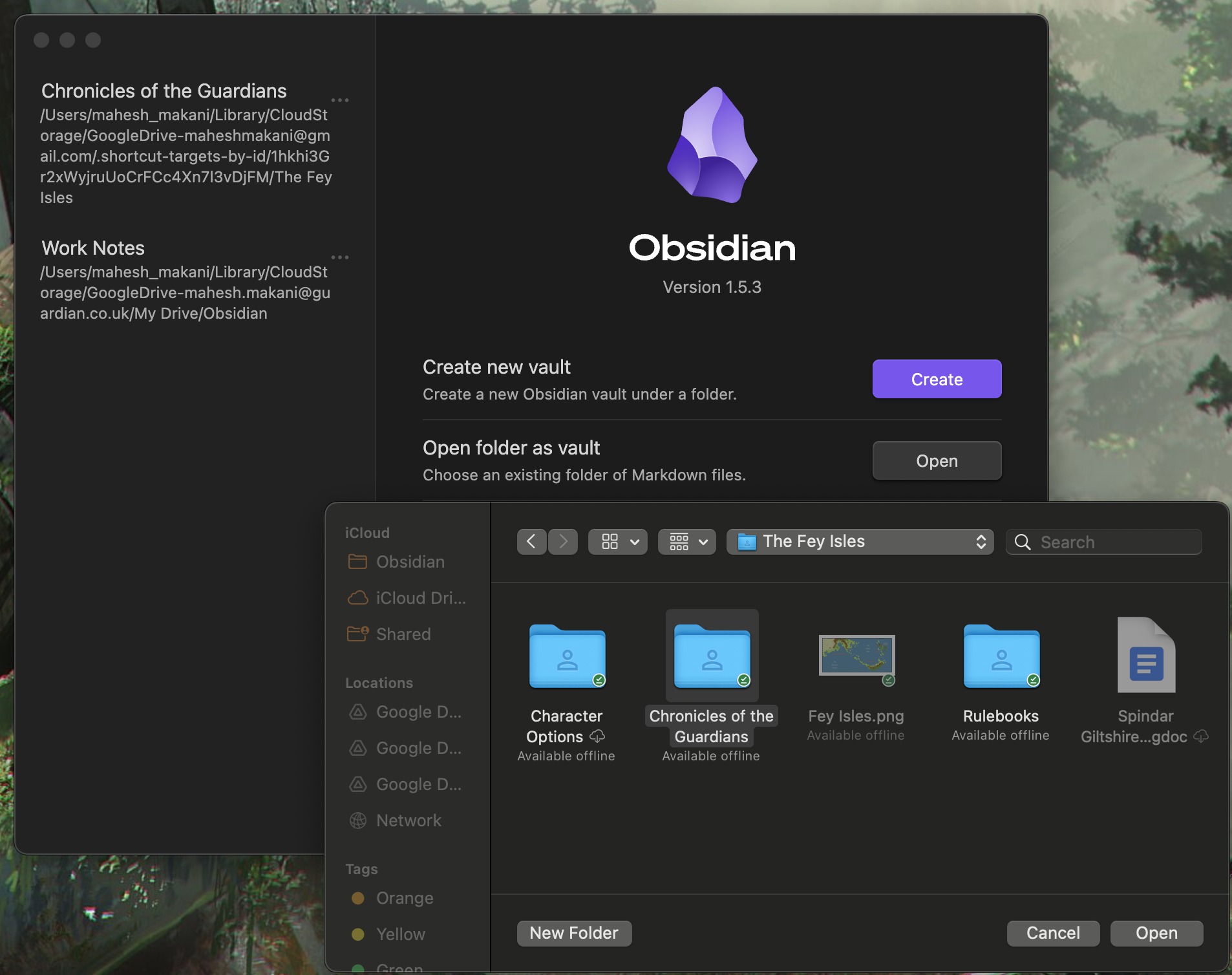
- At this point the Obsidian folder should open and you’re mostly set! Any changes or files you create will now sync to Google Drive, and everyone else also using these docs.
- However it’s helpful to install some plugins to help! To do this go to “Settings” -> “Community Plugins” -> “Browse”.
- Search for the “Templater” plugin by “SilentVoid” and install it. This allows you to use the templates we have defined in the “Templates” folder. Once installed make sure to “enable” it, and then go to the templater settings. Once there add the “Templates” folder to the “Template folder location”. Now you can right-click and “create note from template”!
Website
The website for this Obsidian vault is hosted at chronicles.makani.dev.
Every 30 minutes the server checks the Google Drive folder for changes. If there are it downloads the latest version of the file, and rebuilds the project. This allows us to get a reasonably up to date website compared to live.